GENERATING TEMPLATES
GENERATE AN EXCEL FILE WITHOUT DATA
Iconnect works with Excel templates. This option will be used to generate these files. They can include or not data depending if the option "Show Report" and Information browser has been selected or not.
This option is included in the section "APP".
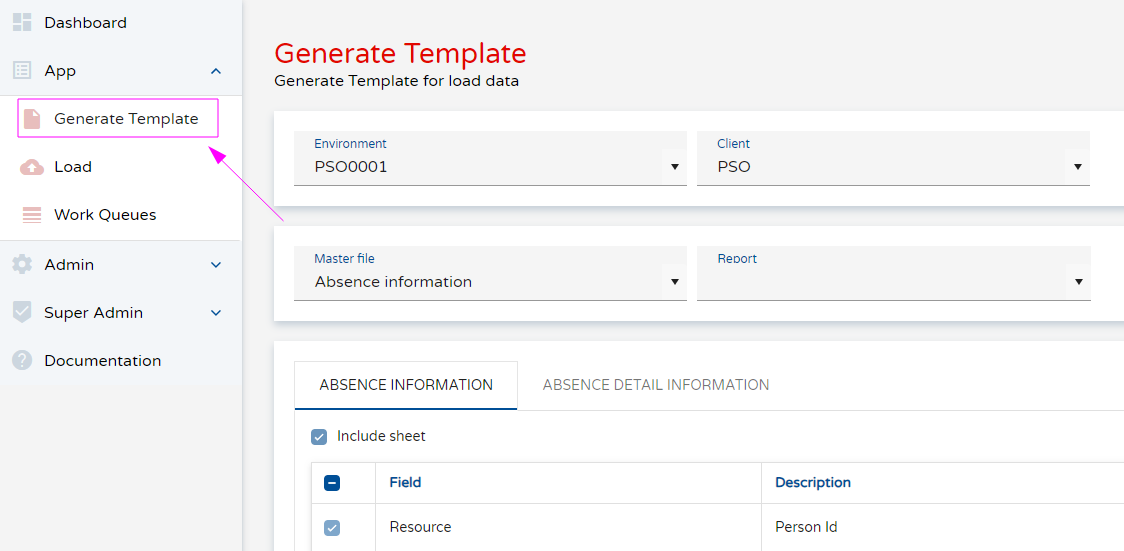
STEPS OF THE PROCESS:
1) Select the Masterfile you want to work with from the dropdown list:
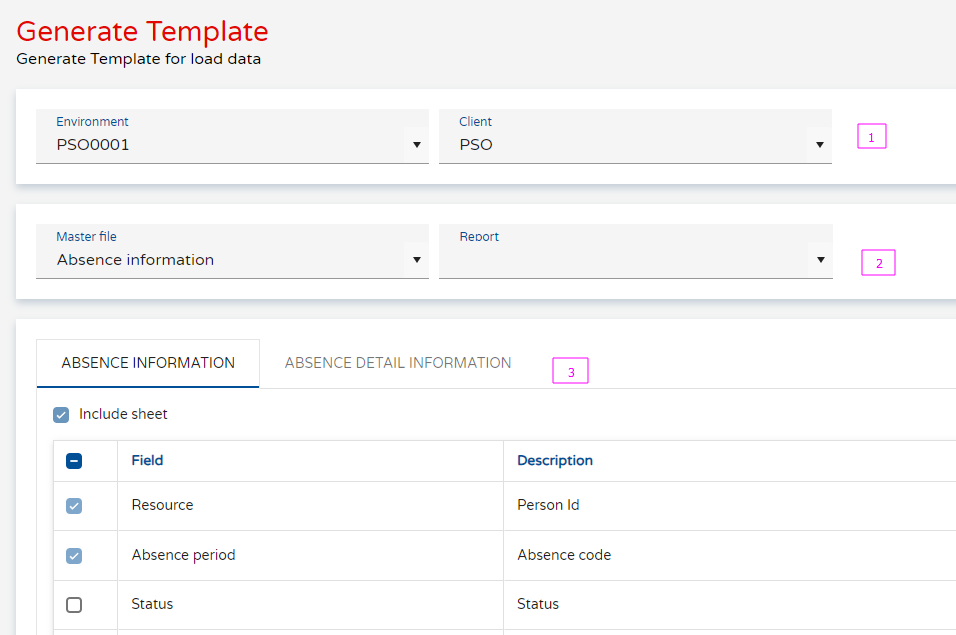
In this example, we select the customer Masterfile. As you see there are 3 sections:
- Environment and client
- Master file or transaction information and parameters
- Tabs based on the master file selection
There is also the button GENERATE in the top rigth of the screen
2) Activate the tabs and fields that you want to include in the template:
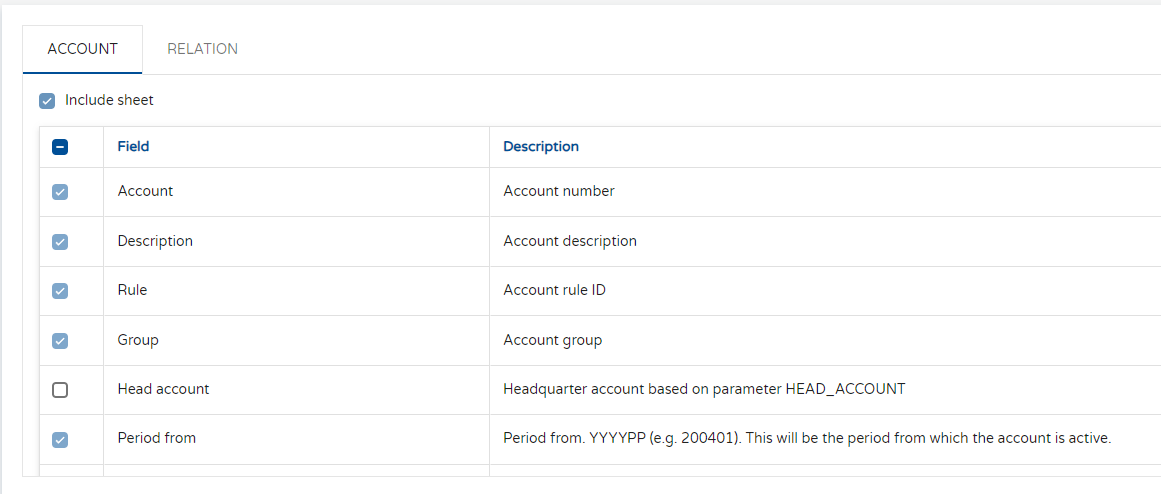
The window will display the master file's' main tab with the relation and contact information tab and the flexi-fields if they have been configured.
These tabs contain the relevant fields related to the master file, and you can select whether include them or not by ticking the Include this sheet check box:
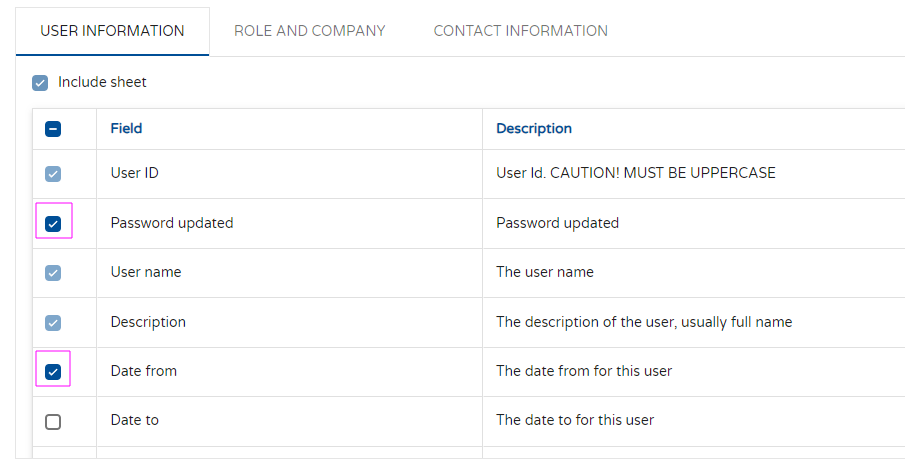
Besides the mandatory fields, you may also select optional fields that you need to insert/update data. Notice that the check box for these fields is colored in dark blue and the mandatory fields colored in light blue.
3) General Settings
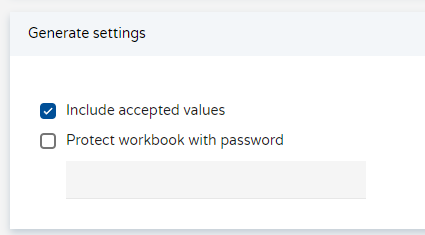
Included accepted values
If this parameter is active, it will generate an extra tab where you can check the values to be entered in the Excel sheet.
Protected worksheet
If this parameter is active, it will generate an Excel template where you can only edit the Data section.
The worksheet structure is password-protected, so that it cannot be changed in any way. Columns cannot be deleted. This ensures that the Excel sheet contains the same structure as when the template was originally created.
With the parameter, you can indicate the password.
4) Once you have decided the template structure you need to download, go to Generate:

Once the generation has started, then you can go to the "Work queues"
5) See the progress of the generation in "Work Queues":
In the Manage Work queues section you will find the progress and result of the generated template.

This section includes the following info:
- User: user from the company that executes the job
- Filename: name of the template
- Type: job type (generate-load)
- Status: job status (not started, started, finished)
- Environment: environment where the template was generated from
- Client: client where the template was generated from
- Creation: job date
- Start: job start date
- Finish: job finish date
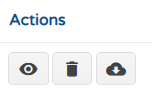
- Actions: Details, Delete, Download Template
ACTIONS
This column shows the details of the job execution, you can also review the transaction log (only admin and super admin users)

There are 3 icons here:
- Details: That takes to the "Task log"
- Delete: Deletes the record
- Dowload: Allows to download the excel template
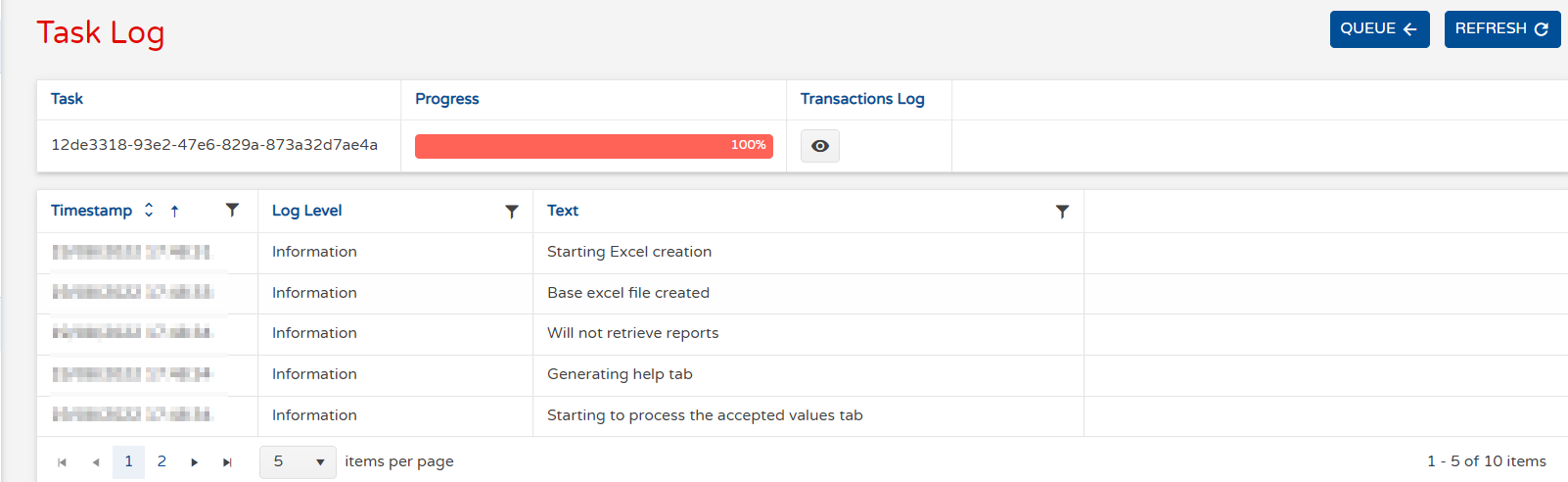
ACTION-DETAILS
We can see the Task log here, including the task log encrypted, the progress of the task and the icon for Transaction log.

When you open the transaction log, you will see all the steps and details for all the transactions of the task.
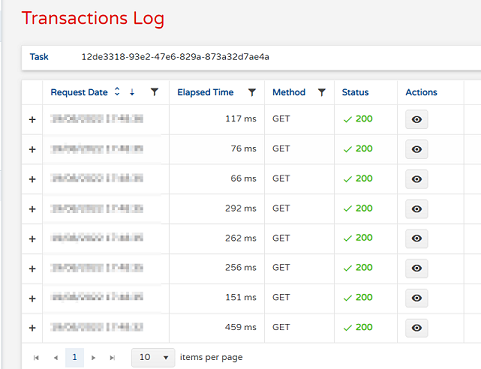
You can also export the transaction log to an .xls file.

ACTION-DELETE
This option, allows you to delete the generated job, a prompt window asking for your confirmation is shown:

ACTION-DOWNLOAD FILE
This is the option to obtain the Iconnect excel template. You can browser and select the folder where you want to save it.
Results:
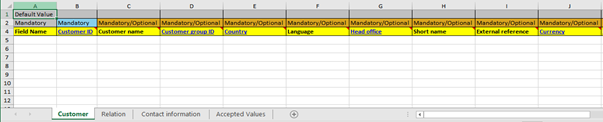
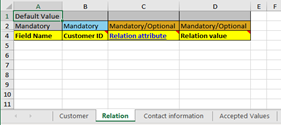
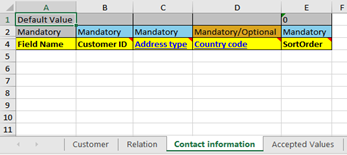
In our example, we see the Customer template that includes the selected tabs and fields:
Main tab
Relation tab
Contact information tab
Accepted values tab
We will see this tab if we have activated the parameter.
GENERATE TEMPLATE WITH DATA
As a summary, this option allows you to generate a template based on a previously defined Masterfile report created in U4 ERP. In order to generate templates with data you need to follow the steps described before with two extra steps:
Step 1: Information Brower in U4ERP
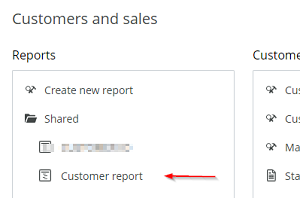
In U4 ERP create an "Information browser" that will be the basis for filter extraction. In our example we create one for the customer master file.
.
Step 2: Show report option in Iconnect
In Iconnect, after we indicate the master file we want to generate the template for (in our example "User Information"), we must select the specific information browser.
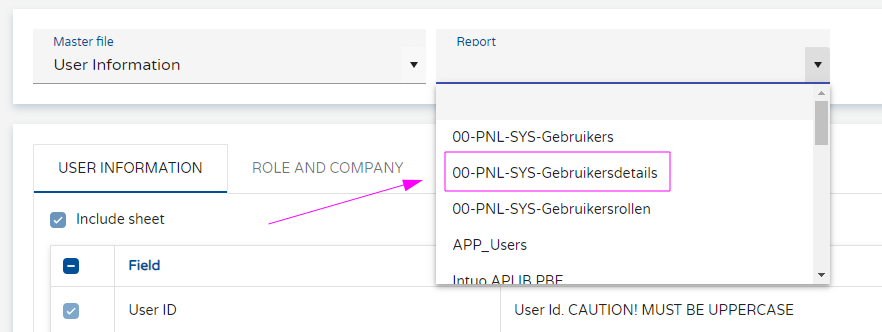
Warning
Not all the master files allow to select a check box.
Rest of the process: Include tabs and fields and generate
Then we pick the fields we want to include in our template and we generate it. We should obtain the template with the structure and the data.The records obtained should be the same that the one in the Information browser. It means that the search criteria of the information browser works as a filter for the Iconnect template data to be included.
Required fields in the Information Browser
For each master file, the report must contain at least the following fields, otherwise no data will be included in the template.
Master File |
Required field for extracting reports |
|---|---|
Absence information |
ResourceId, SequenceNumber, absSeq |
Account |
Account, periodFrom |
Account Groups |
Account groups |
Attribute |
AttributeID |
Attribute details |
attributeID, attributeValue, periodFrom |
Attribute list |
attributeID |
Company |
Id |
Country |
countryCode, language |
Currency code |
currencyCode |
Custom Titles |
Language, Title number |
Customer |
customerId |
Employee |
resourceId |
Holidays |
Holidayregister, holiday date, Date type2 |
Menu |
menuId |
Menu access |
menuId |
PD Connections |
attributeId |
Posting cycle |
postingCycleId |
Project information |
projectId |
Relation |
AttributeId, Related attribute Id |
Requisition |
requisitionId |
Role information |
roleId |
Sales order |
salesOrderId |
Supplier |
supplierId |
Transaction series |
transactionSeries |
Transaction type |
transactionType |
User information |
userId |
Value Matrix |
matrixId |
Value Reference |
valueReference |
Workorder information |
workOrderId |
Workflow substitute rule |
rule |